Product management
In order to manage the products in your store more conveniently and efficiently, you need to create categories, products, and modifiers first.
Category : Product categories, used to organize and manage products by category. For example: a coffee shop, the product categories may include “hot drinks”, “cold drinks” and “snacks”.
Product : The specific product sold in the store. For example, a specific product under the “hot drinks” category may be a “latte”.
Modifier : Additional options for the product to meet the flexible selection needs of customers’ orders. For example, for the product “Latte”, additional options may include: “Milk type” (such as whole milk, skim milk, almond milk, soy milk), “Flavor” (such as vanilla, caramel, hazelnut), etc. One Modifier can be used for multiple products. For example, “Milk type” can be used for products such as “Latte” and “Australian White Coffee”.
Create categories
Navigate from the left sidebar to the Items > Items > Categories page.
Click the New button in the upper right corner.

Enter the name of the category and select the color and shape of the icon.
Click Save.
After creating all categories, long press the move icon on the right side of the list to drag and drop to adjust the display order of each category on the menu.
Create products
You can manually create products one by one in the backend according to the menu used by the store, and complete the information of each product (name, price, category, etc.).
If there are too many products, we recommend that you download the product template file, fill in the product information in the required format according to the file, and import the template file to quickly create products in batches.
Manually create products
Navigate from the left sidebar to the Items > Items > Products page.
Click the New button in the upper right corner.

Set the basic information of the product, including name, price, category, etc.
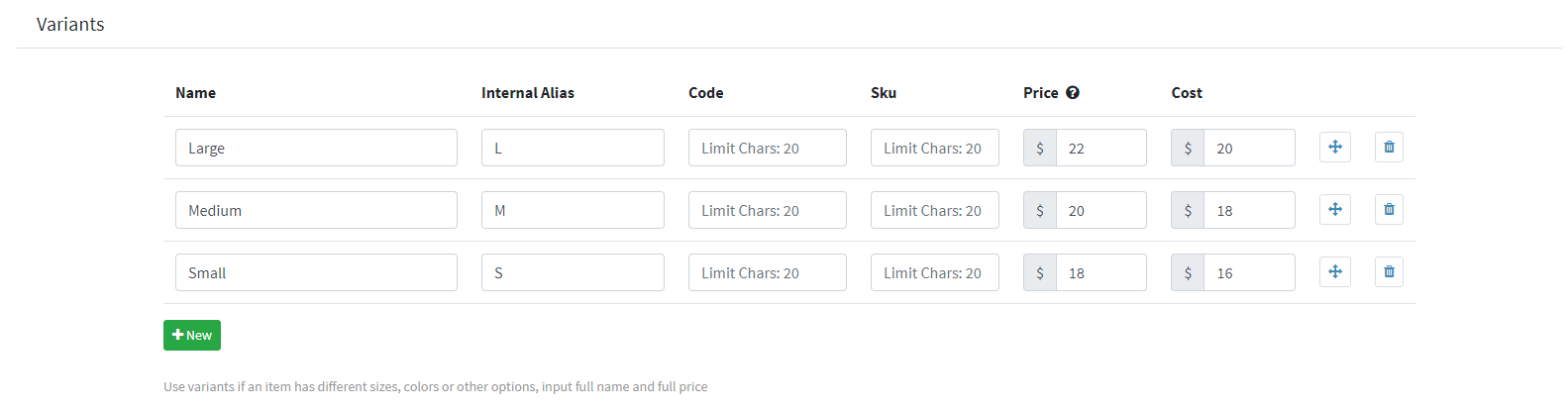
If the product has different sizes, colors or other specifications, you can add multiple Variants to the product, each with its own price and inventory. For example, the “Latte” product has three Variants: small cup, medium cup and large cup. In the Variants area, you can refer to the following configuration:
If the product has additional options, you can first create a Modifier, and then add the Modifier to the product. For example: “Latte” this product, additional options may include: “milk type” (such as whole milk, skim milk, almond milk, soy milk), “flavor” (such as vanilla, caramel, hazelnut), etc.
Scroll down the page to add tags, select appropriate icons, or upload product images to facilitate customers’ ordering.
Click Save.
After creating all products, click on the corresponding category in the list title bar, and long press the move icon on the right side of the list to adjust the display order of each product under the menu category by dragging and dropping.
Use template to batch create products
Navigate from the left sidebar to the Items > Items > Products page.
Tap the + New button in the upper-right corner and click Import.

Click Download Template to download the product template file.
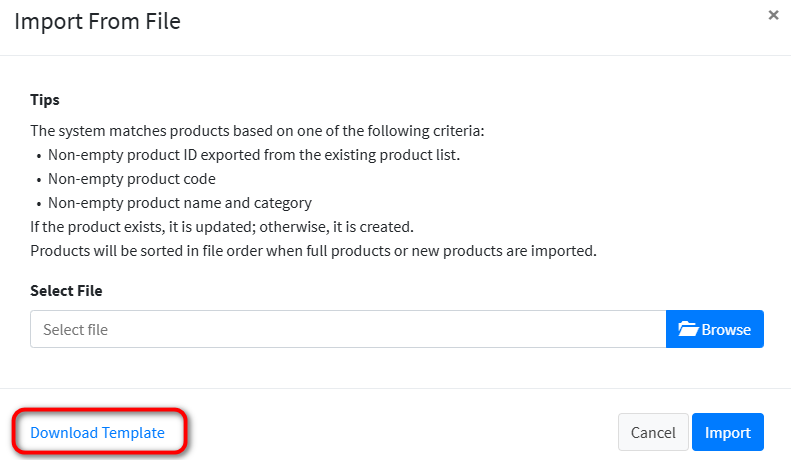
Refer to the examples provided in the template file and the instructions in the title bar to complete your product file information, and then import it into the system according to step 2 to create products in bulk.
Tips
Product template file “Name”, “Price”, “Category” are required, different products “Code”, “Sku” can not be repeated.
Create Modifiers
Navigate from the left sidebar to the Items > Items > Addon page.
Click the + New button in the upper right corner.

Details of configuring Modifier:
Fill in the name.
Set order restrictions. Customers are required to select at least or up to several Modifier options when placing an order.
Max Limitation : The maximum number of options that the customer can choose. The default is 0, and any number can be selected.
Min Required : The minimum number of options that the customer needs to select. The default is 0, and customers can select none.
In the Options area, click New to add multiple Modifier options. Fill in the name, price, maximum number of options, and set the supported ordering methods.
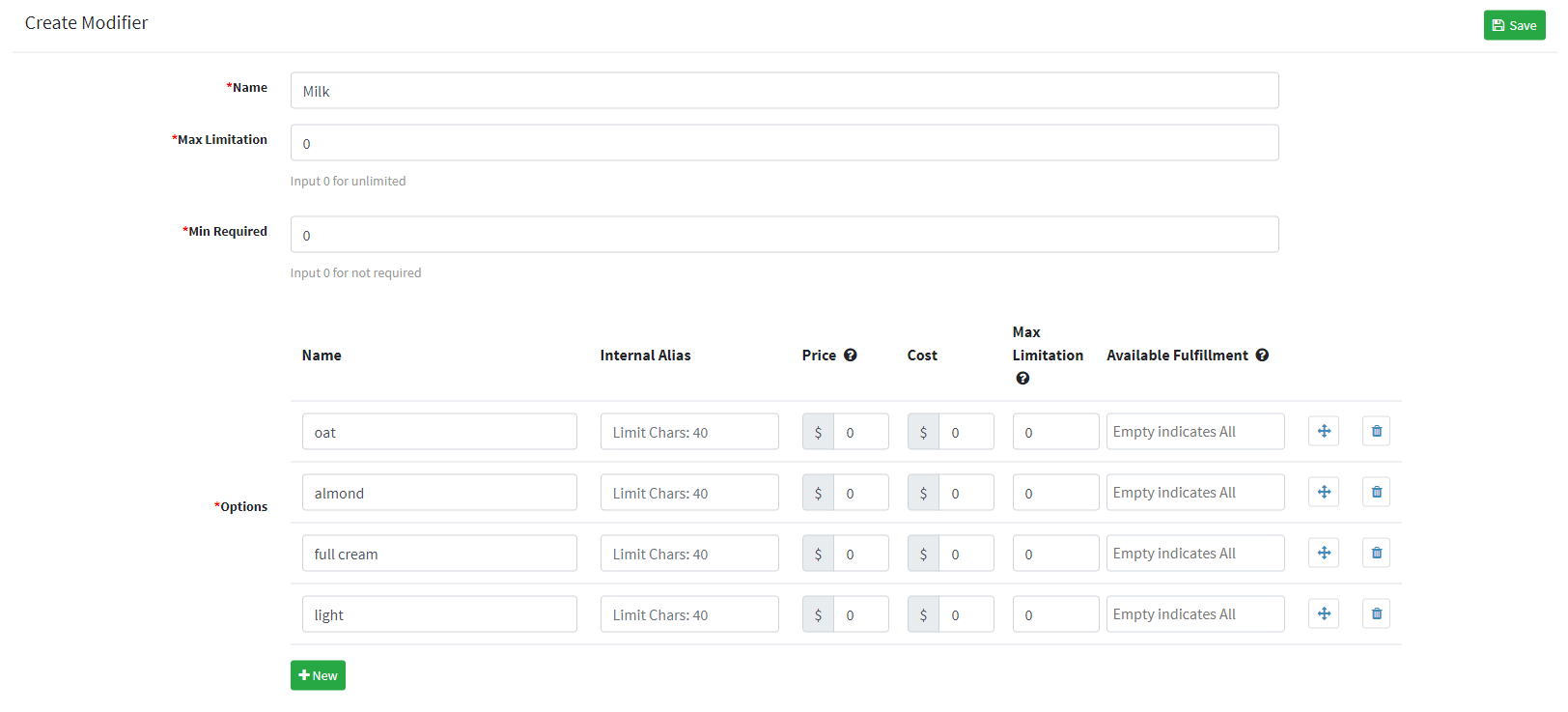
Click Save.
Add Modifiers to Products
Navigate from the left sidebar to the Items > Items > Products page.
Find the product that needs to add Modifiers in the product list, and click the pencil icon on the right.

Choose Modifiers, each product can choose multiple Modifiers.

Click Save