You can quickly add new products on the POS machine and assign suitable print groups to them for easy printing of kitchen orders. Depending on your business needs, you can also add multiple variants to products or enable inventory tracking to facilitate timely restocking.
If you have many products to add or need to edit modifiers or supported ordering methods for products, you can do so in the backoffice.
Adding Products on the POS Machine
Adding new products on the POS machine involves completing the basic information of the product such as its name, price, category, icon, etc. and assigning print groups to facilitate printing of kitchen orders.
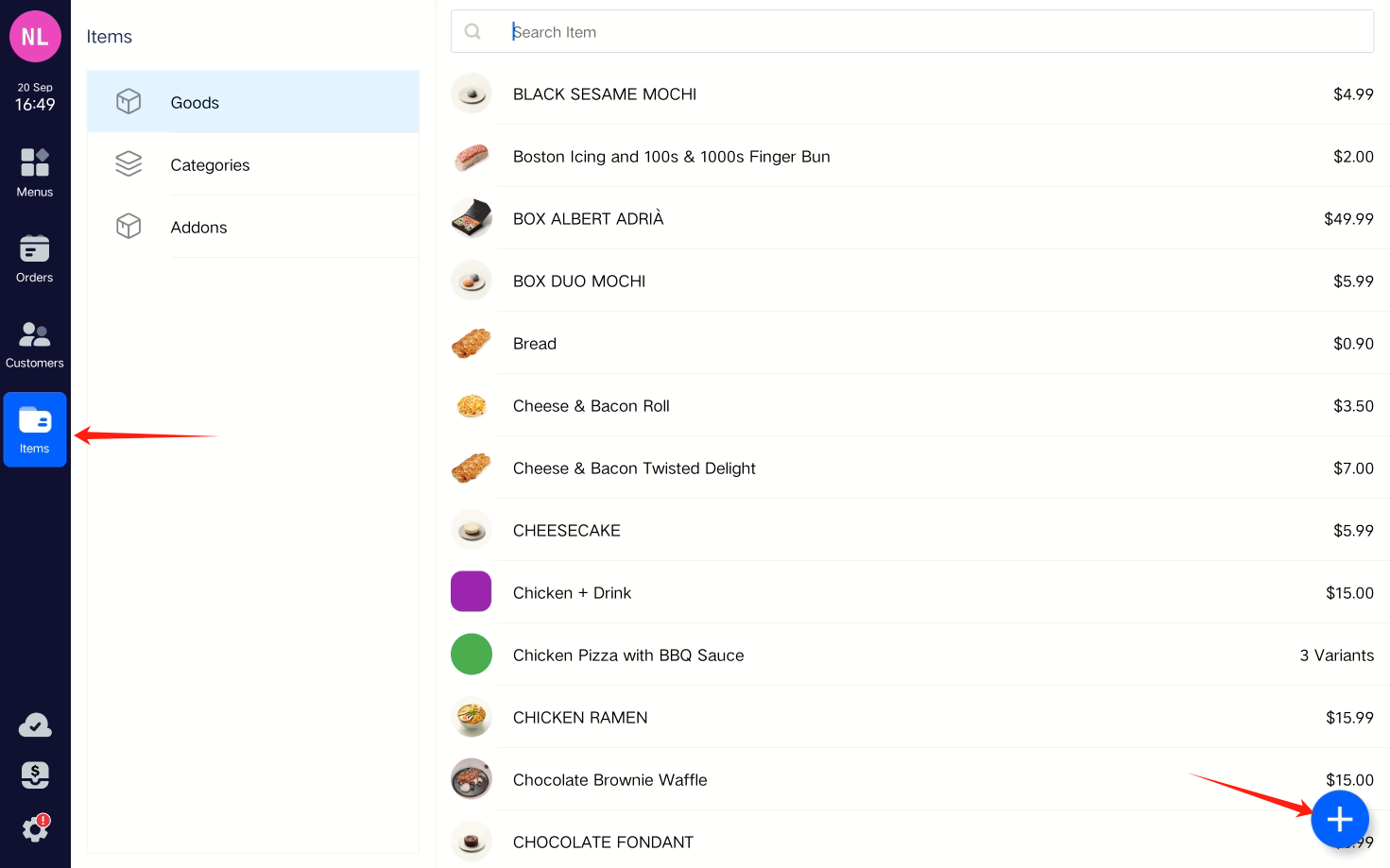
Navigate to the products page from the left-hand side navigation bar.
Click on the + icon at the bottom right of the page to add a new product.
On the product creation page, edit the detailed information of the product:
Basic Information Complete the basic information of the product, including its name, prices for in-house dining and takeout/packaging, category, SKU, etc.
Variant
A variant is a variation of a product due to certain characteristics, each with its own SKU, making them distinct products. For example, based on the size of a coffee cup, you can have variants like large, medium, and small cups of coffee.
Each variant of a product typically has a different price. When settling the order amount, the price of the variant actually purchased by the customer at the time of ordering is considered.
Scroll down the page to find the Variants section, click on the + icon on the right to add multiple variants, and set their respective names, prices, SKUs, and other information.
Newly added products do not support adding or editing product content Modifiers on the POS. You will need to manually add modifiers to the product in the backoffice.
Assigning Print Groups
A print group is an organizational method used to manage product printing. Products in a store can typically be assigned to multiple print groups, with each printer printing products from different print groups.
When adding a new product, it’s important to add the product to the appropriate print group. Otherwise, when printing kitchen orders, the product will not be printed by the printer.
Scroll down the page to find the Printing Group section, check the suitable print groups for the new product. If there are no suitable print groups available, you can create a new print group in the backoffice and then synchronize it on the POS machine.
If you are opening a new shop/store or have existing shop/store in Sydney, NSW, Melbourne, VIC, Brisbane, QLD, Adelaide, SA, Perth, WA, Tasmania, and Canberra, and want to apply for a TYRO Eftpos Machine, and need a new cash register POS System, business website design, booking system, online store, domain name registration, business email address, computer systems, energy supplies, online ordering system. Please contact us. We can provide you with professional services and help you save time. We are the official agent of TYRO. We can save you time by helping you apply through us. We will also try our best to help you solve the problem if there is any problem. Because we have a long term relationship with the card machine companies. We know who to call to help you solve the problem the fastest.

Scan QR to Contact Us
Australia POS, Melbourne POS, Sydney POS, Brisbane POS, Canberra POS, Adelaide POS, Perth POS, Tasmania POS, NSW POS, VIC POS, QLD POS, South Australia POS, Queensland POS, Tasmania POS, NSW POS, VIC POS, QLD POS Tasmania POS, New South Wales POS, Victoria VIC POS, Queensland QLD POS, South Australia POS, Western Australia POS, Tasmania POS. Tasmania POS. If you want to compare our cash registers with Abacus POS cash registers, Ziipos POS cash registers, Square POS cash registers, Lightspeed POS cash registers, Epos Now cash registers, Shopify cash registers, Ordermate cash registers, Daily POS, Vectron, Senor POS, please make an appointment with us!